Free Omni Video Factory
Create video from text or an image, or extend a source clip in one workspace. Use manual scene prompts or the optional automatic prompt helper, then preview the generated video.
This public demo offers a limited workflow with shared GPU quota. Start with one 3-second scene and manual prompts. Auto Prompt has separate limits; longer workflows and features promoted on the provider’s website may have different terms. Demo outputs are restricted to research and experimentation.
Try the tool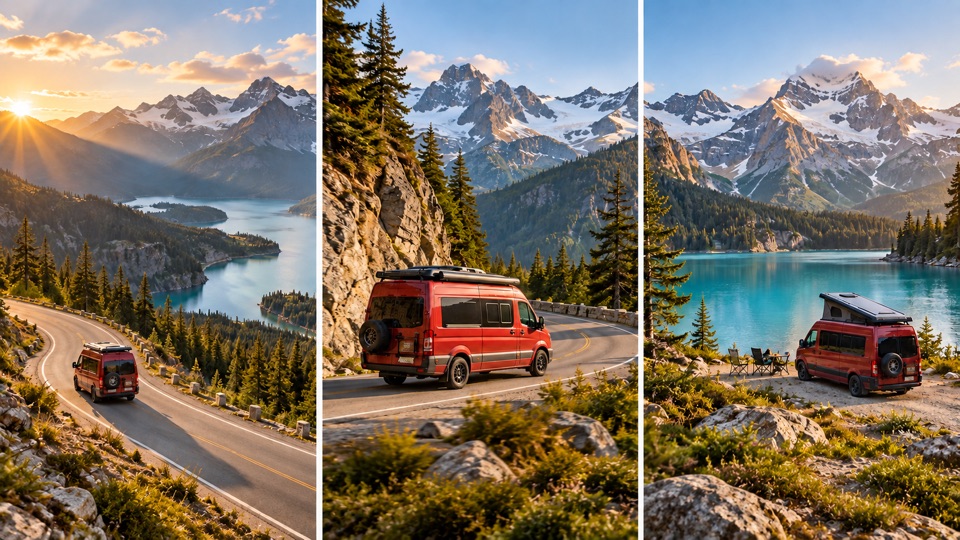
What you need
- Text prompt
- Image (optional)
- Video (optional)
Create and Extend Video Scenes
Checking demo availability…
Loading the demo…
How to use it
1. Prepare your inputs
Open the demo and add the inputs listed above. You can start with an example inside the demo before uploading your own files.
2. Set up the result
Start with one scene, 3 seconds and 384 resolution to learn the workflow. The interface offers up to four scenes, 3 or 5 seconds per scene, and 384 or 512 resolution. Match the chosen mode to your image or video input.
3. Generate and review
Run the selected task and wait for the queue. Review the result, adjust one setting at a time, and save the output using the controls in the demo.
Common questions
Is the demo free to use?
This public demo offers a limited workflow with shared GPU quota. Start with one 3-second scene and manual prompts. Auto Prompt has separate limits; longer workflows and features promoted on the provider’s website may have different terms. Demo outputs are restricted to research and experimentation.
Where are my uploads processed?
The selected Hugging Face Space receives your inputs and runs the model. Its maintainer controls processing and retention. The surrounding guide is translated; the demo uses the languages provided by its maintainer.
What if the demo does not load?
Reload the workspace or choose a backup server if available. If your GPU quota is used up, wait for it to reset or try a related tool.